
近日在使用ssh命令ssh user@remote ~/myscript.sh登陆到远程机器remote上执行脚本时,遇到一个奇怪的问题:
~/myscript.sh: line n: app: command not found
app是一个新安装的程序,安装路径明明已通过/etc/profile配置文件加到环境变量中,但这里为何会找不到?如果直接登陆机器remote并执行~/myscript.sh时,app程序可以找到并顺利执行。但为什么使用了ssh远程执行同样的脚本就出错了呢?两种方式执行脚本到底有何不同?如果你也心存疑问,请跟随我一起来展开分析。
- 说明,本文所使用的机器是:SUSE Linux Enterprise。
1. 问题定位
这看起来像是环境变量引起的问题,为了证实这一猜想,我在这条命令之前加了一句: ,来查看app的安装路径。在remote本机上执行脚本时,它会打印出app正确的安装路径。但再次用ssh来执行时,却遇到下面的错误:
which: no app in (/usr/bin:/bin:/usr/sbin:/sbin)
这很奇怪,怎么括号中的环境变量没有了app程序的安装路径?不是已通过/etc/profile设置到PATH中了?再次在脚本中加入echo $PATH并以ssh执行,这才发现,环境变量仍是系统初始化时的结果:
/usr/bin:/bin:/usr/sbin:/sbin
这证明/etc/profile根本没有被调用。为什么?是ssh命令的问题么?
随后我又尝试了将上面的ssh分解成下面两步:
user@local > ssh user@remote    # 先远程登陆到remote上
user@remote> ~/myscript.sh      # 然后在返回的shell中执行脚本
结果竟然成功了。那么ssh以这两种方式执行的命令有何不同?带着这个问题去查询了man ssh:
If command is specified, it is executed on the remote host instead of a login shell.
这说明在指定命令的情况下,命令会在远程主机上执行,返回结果后退出。而未指定时,ssh会直接返回一个登陆的shell。但到这里还是无法理解,直接在远程主机上执行和在返回的登陆shell中执行有什么区别?即使在远程主机上执行不也是通过shell来执行的么?难道是这两种方式使用的shell有什么不同?
暂时还没有头绪,但隐隐感到应该与shell有关。因为我通常使用的是bash,所以又去查询了man bash,才得到了答案。
2. bash的四种模式
在man page的INVOCATION一节讲述了bash的四种模式,bash会依据这四种模式而选择加载不同的配置文件,而且加载的顺序也有所不同。本文ssh问题的答案就存在于这几种模式当中,所以在我们揭开谜底之前先来分析这些模式。
2.1. interactive + login shell
第一种模式是交互式的登陆shell,这里面有两个概念需要解释:interactive和login:
login故名思义,即登陆,login shell是指用户以非图形化界面或者以ssh登陆到机器上时获得的第一个shell,简单些说就是需要输入用户名和密码的shell。因此通常不管以何种方式登陆机器后用户获得的第一个shell就是login shell。
interactive意为交互式,这也很好理解,interactive shell会有一个输入提示符,并且它的标准输入、输出和错误输出都会显示在控制台上。所以一般来说只要是需要用户交互的,即一个命令一个命令的输入的shell都是interactive shell。而如果无需用户交互,它便是non-interactive shell。通常来说如bash script.sh此类执行脚本的命令就会启动一个non-interactive shell,它不需要与用户进行交互,执行完后它便会退出创建的shell。
那么此模式最简单的两个例子为:
- 用户直接登陆到机器获得的第一个shell
- 用户使用ssh user@remote获得的shell
2.1.1. 加载配置文件
这种模式下,shell首先加载/etc/profile,然后再尝试依次去加载下列三个配置文件之一,一旦找到其中一个便不再接着寻找:
~/.bash_profile
~/.bash_login
~/.profile
下面给出这个加载过程的伪代码:
execute /etc/profile
IF ~/.bash_profile exists THEN
    execute ~/.bash_profile
ELSE
    IF ~/.bash_login exist THEN
        execute ~/.bash_login
    ELSE
        IF ~/.profile exist THEN
            execute ~/.profile
        END IF
    END IF
END IF
为了验证这个过程,我们来做一些测试。首先设计每个配置文件的内容如下:
user@remote > cat /etc/profile
echo @ /etc/profile
user@remote > cat ~/.bash_profile
echo @ ~/.bash_profile
user@remote > cat ~/.bash_login
echo @ ~/.bash_login
user@remote > cat ~/.profile
echo @ ~/.profile
然后打开一个login shell,注意,为方便起见,这里使用bash -l命令,它会打开一个login shell,在man bash中可以看到此参数的解释:
-l Make bash act as if it had been invoked as a login shell
进入这个新的login shell,便会得到以下输出:
@ /etc/profile
@ /home/user/.bash_profile
果然与文档一致,bash首先会加载全局的配置文件/etc/profile,然后去查找~/.bash_profile,因为其已经存在,所以剩下的两个文件不再会被查找。
接下来移除~/.bash_profile,启动login shell得到结果如下:
@ /etc/profile
@ /home/user/.bash_login
因为没有了~/.bash_profile的屏蔽,所以~/.bash_login被加载,但最后一个~/.profile仍被忽略。
再次移除~/.bash_login,启动login shell的输出结果为:
@ /etc/profile
@ /home/user/.profile
~/.profile终于熬出头,得见天日。通过以上三个实验,配置文件的加载过程得到了验证,除去/etc/profile首先被加载外,其余三个文件的加载顺序为:~/.bash_profile > ~/.bash_login > ~/.profile,只要找到一个便终止查找。
前面说过,使用ssh也会得到一个login shell,所以如果在另外一台机器上运行ssh user@remote时,也会得到上面一样的结论。
2.1.2. 配置文件的意义
那么,为什么bash要弄得这么复杂?每个配置文件存在的意义是什么?
/etc/profile很好理解,它是一个全局的配置文件。后面三个位于用户主目录中的配置文件都针对用户个人,也许你会问为什么要有这么多,只用一个~/.profile不好么?究竟每个文件有什么意义呢?这是个好问题。
Cameron Newham和Bill Rosenblatt在他们的著作《Learning the bash Shell, 2nd Edition》的59页解释了原因:

bash allows two synonyms for .bash_profile: .bash_login, derived from the C shell’s file named .login, and .profile, derived from the Bourne shell and Korn shell files named .profile. Only one of these three is read when you log in. If .bash_profile doesn’t exist in your home directory, then bash will look for .bash_login. If that doesn’t exist it will look for .profile.

One advantage of bash’s ability to look for either synonym is that you can retain your .profile if you have been using the Bourne shell. If you need to add bash-specific commands, you can put them in .bash_profile followed by the command source .profile. When you log in, all the bash-specific commands will be executed and bash will source .profile, executing the remaining commands. If you decide to switch to using the Bourne shell you don’t have to modify your existing files. A similar approach was intended for .bash_login and the C shell .login, but due to differences in the basic syntax of the shells, this is not a good idea.
原来一切都是为了兼容,这么设计是为了更好的应付在不同shell之间切换的场景。因为bash完全兼容Bourne shell,所以.bash_profile和.profile可以很好的处理bash和Bourne shell之间的切换。但是由于C shell和bash之间的基本语法存在着差异,作者认为引入.bash_login并不是个好主意。所以由此我们可以得出这样的最佳实践:
- 应该尽量杜绝使用
.bash_login,如果已经创建,那么需要创建.bash_profile来屏蔽它被调用 .bash_profile适合放置bash的专属命令,可以在其最后读取.profile,如此一来,便可以很好的在Bourne shell和bash之间切换了
2.2. non-interactive + login shell
第二种模式的shell为non-interactive login shell,即非交互式的登陆shell,这种是不太常见的情况。一种创建此shell的方法为:bash -l script.sh,前面提到过-l参数是将shell作为一个login shell启动,而执行脚本又使它为non-interactive shell。
对于这种类型的shell,配置文件的加载与第一种完全一样,在此不再赘述。
2.3. interactive + non-login shell
第三种模式为交互式的非登陆shell,这种模式最常见的情况为在一个已有shell中运行bash,此时会打开一个交互式的shell,而因为不再需要登陆,因此不是login shell。
2.3.1. 加载配置文件
对于此种情况,启动shell时会去查找并加载/etc/bash.bashrc和~/.bashrc文件。
为了进行验证,与第一种模式一样,设计各配置文件内容如下:
user@remote > cat /etc/bash.bashrc
echo @ /etc/bash.bashrc
user@remote > cat ~/.bashrc
echo @ ~/.bashrc
然后我们启动一个交互式的非登陆shell,直接运行bash即可,可以得到以下结果:
@ /etc/bash.bashrc
@ /home/user/.bashrc
由此非常容易的验证了结论。
注意!这里经由个人测试,由于centos系列不含/etc/bash.bashrc文件,所以这里直接就执行了~/.bashrc文件;同时就算加上/etc/bash.bashrc文件,centos系列也不会去执行它,这点需要注意。
2.3.2. bashrc VS profile
从刚引入的两个配置文件的存放路径可以很容易的判断,第一个文件是全局性的,第二个文件属于当前用户。在前面的模式当中,已经出现了几种配置文件,多数是以profile命名的,那么为什么这里又增加两个文件呢?这样不会增加复杂度么?我们来看看此处的文件和前面模式中的文件的区别。
首先看第一种模式中的profile类型文件,它是某个用户唯一的用来设置全局环境变量的地方, 因为用户可以有多个shell比如bash, sh, zsh等, 但像环境变量这种其实只需要在统一的一个地方初始化就可以, 而这个地方就是profile,所以启动一个login shell会加载此文件,后面由此shell中启动的新shell进程如bash,sh,zsh等都可以由login shell中继承环境变量等配置。
接下来看bashrc,其后缀rc的意思为Run Commands,由名字可以推断出,此处存放bash需要运行的命令,但注意,这些命令一般只用于交互式的shell,通常在这里会设置交互所需要的所有信息,比如bash的补全、alias、颜色、提示符等等。
所以可以看出,引入多种配置文件完全是为了更好的管理配置,每个文件各司其职,只做好自己的事情。
2.4. non-interactive + non-login shell
最后一种模式为非交互非登陆的shell,创建这种shell典型有两种方式:
bash script.shssh user@remote command
这两种都是创建一个shell,执行完脚本之后便退出,不再需要与用户交互。
2.4.1. 加载配置文件
对于这种模式而言,它会去寻找环境变量BASH_ENV,将变量的值作为文件名进行查找,如果找到便加载它。
同样,我们对其进行验证。首先,测试该环境变量未定义时配置文件的加载情况,这里需要一个测试脚本:
user@remote > cat ~/script.sh
echo Hello World
然后运行bash script.sh,将得到以下结果:
Hello World
从输出结果可以得知,这个新启动的bash进程并没有加载前面提到的任何配置文件。接下来设置环境变量BASH_ENV:
user@remote > export BASH_ENV=~/.bashrc
注意要把变量设置为环境变量,再次执行bash script.sh,结果为:
@ /home/user/.bashrc
Hello World
果然,~/.bashrc被加载,而它是由环境变量BASH_ENV设定的。
2.5. 更为直观的示图
至此,四种模式下配置文件如何加载已经讲完,因为涉及的配置文件有些多,我们再以两个图来更为直观的进行描述:
第一张图来自这篇文章,bash的每种模式会读取其所在列的内容,首先执行A,然后是B,C。而B1,B2和B3表示只会执行第一个存在的文件:
| login | interactive non-login | non-interactive non-login | |
|---|---|---|---|
| /etc/profile | A | ||
| /etc/bash.bashrc | A (Centos无) | ||
| ~/.bashrc | B | ||
| ~/.bash_profile | B1 | ||
| ~/.bash_login | B2 | ||
| ~/.profile | B3 | ||
| BASH_ENV | A |
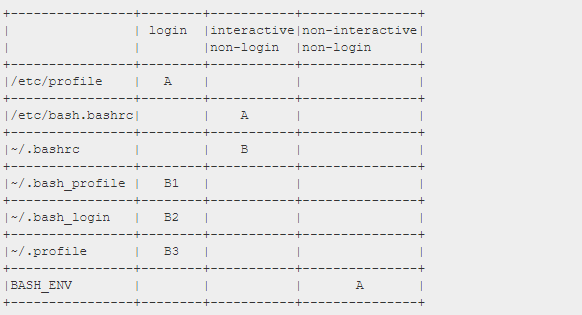
上图只给出了三种模式,原因是第一种login实际上已经包含了两种,因为这两种模式下对配置文件的加载是一致的。
2.6. 另外一篇文章给出了一个更直观的图:
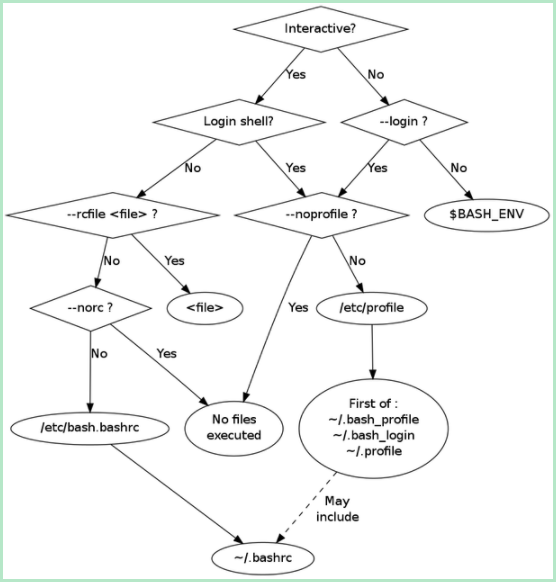
上图的情况稍稍复杂一些,因为它使用了几个关于配置文件的参数:--login,--rcfile,--noprofile,--norc,这些参数的引入会使配置文件的加载稍稍发生改变,不过总体来说,不影响我们前面的讨论,相信这张图不会给你带来更多的疑惑。
2.7. 典型模式总结
为了更好的理清这几种模式,下面我们对一些典型的启动方式各属于什么模式进行一个总结:
- 登陆机器后的第一个shell:login + interactive
- 新启动一个shell进程,如运行
bash:non-login + interactive - 执行
screen命令:non-login + interactive su user:non-login + interactivesu - user:login + interactive- 执行脚本,如
bash script.sh:non-login + non-interactive - 运行头部有如
#!/usr/bin/env bash的可执行文件,如./executable:non-login + non-interactive - 通过ssh登陆到远程主机:login + interactive
- 远程执行脚本,如
ssh user@remote script.sh:non-login + non-interactive - 远程执行脚本,同时请求控制台,如
ssh user@remote -t 'echo $PWD':non-login + interactive - 在图形化界面中打开terminal:
- Linux上: non-login + interactive
- Mac OS X上: login + interactive
相信你在理解了login和interactive的含义之后,应该会很容易对上面的启动方式进行归类。
3. 再次尝试
在介绍完bash的这些模式之后,我们再回头来看文章开头的问题。ssh user@remote ~/myscript.sh属于哪一种模式?相信此时你可以非常轻松的回答出来:non-login + non-interactive。对于这种模式,bash会选择加载$BASH_ENV的值所对应的文件,所以为了让它加载/etc/profile,可以设定:
user@remote > export BASH_ENV=/etc/profile
然后执行上面的命令,但是很遗憾,发现错误依旧存在。这是怎么回事?别着急,这并不是我们前面的介绍出错了。仔细查看之后才发现脚本myscript.sh的第一行为#!/usr/bin/env sh,注意看,它和前面提到的#!/usr/bin/env bash不一样,可能就是这里出了问题。我们先尝试把它改成#!/usr/bin/env bash,再次执行,错误果然消失了,这与我们前面的分析结果一致。
第一行的这个语句有什么用?设置成sh和bash有什么区别?带着这些疑问,再来查看man bash:
If the program is a file beginning with #!, the remainder of the first line specifies an interpreter for the program.
它表示这个文件的解释器,即用什么程序来打开此文件,就好比Windows上双击一个文件时会以什么程序打开一样。因为这里不是bash,而是sh,那么我们前面讨论的都不复有效了,真糟糕。我们来看看这个sh的路径:
user@remote > ll `which sh`
lrwxrwxrwx 1 root root 9 Apr 25  2014 /usr/bin/sh -> /bin/bash
原来sh只是bash的一个软链接,既然如此,BASH_ENV应该是有效的啊,为何此处无效?还是回到man bash,同样在INVOCATION一节的下部看到了这样的说明:
If bash is invoked with the name sh, it tries to mimic the startup behavior of historical versions of sh as closely as possible, while conforming to the POSIX standard as well. When invoked as an interactive login shell, or a non-interactive shell with the –login option, it first attempts to read and execute commands from /etc/profile and ~/.profile, in that order. The –noprofile option may be used to inhibit this behavior. When invoked as an interactive shell with the name sh, bash looks for the variable ENV, expands its value if it is defined, and uses the expanded value as the name of a file to read and execute. Since a shell invoked as sh does not attempt to read and execute commands from any other startup files, the –rcfile option has no effect. A non-interactive shell invoked with the name sh does not attempt to read any other startup files. When invoked as sh, bash enters posix mode after the startup files are read.
简而言之,当bash以是sh命启动时,即我们此处的情况,bash会尽可能的模仿sh,所以配置文件的加载变成了下面这样:
- interactive + login: 读取
/etc/profile和~/.profile - non-interactive + login: 同上
- interactive + non-login: 读取
ENV环境变量对应的文件 - non-interactive + non-login: 不读取任何文件
这样便可以解释为什么出错了,因为这里属于non-interactive + non-login,所以bash不会读取任何文件,故而即使设置了BASH_ENV也不会起作用。所以为了解决问题,只需要把sh换成bash,再设置环境变量BASH_ENV即可。
另外,其实我们还可以设置参数到第一行的解释器中,如#!/bin/bash --login,如此一来,bash便会强制为login shell,所以/etc/profile也会被加载。相比上面那种方法,这种更为简单。
3.0.1. 配置文件建议
回顾一下前面提到的所有配置文件,总共有以下几种:
/etc/profile
~/.bash_profile
~/.bash_login
~/.profile
/etc/bash.bashrc
~/.bashrc
$BASH_ENV
$ENV
不知你是否会有疑问,这么多的配置文件,究竟每个文件里面应该包含哪些配置,比如PATH应该在哪?提示符应该在哪配置?启动的程序应该在哪?等等。所以在文章的最后,我搜罗了一些最佳实践供各位参考。(这里只讨论属于用户个人的配置文件)
~/.bash_profile:应该尽可能的简单,通常会在最后加载.profile和.bashrc(注意顺序)~/.bash_login:在前面讨论过,别用它~/.profile:此文件用于login shell,所有你想在整个用户会话期间都有效的内容都应该放置于此,比如启动进程,环境变量等~/.bashrc:只放置与bash有关的命令,所有与交互有关的命令都应该出现在此,比如bash的补全、alias、颜色、提示符等等。特别注意:别在这里输出任何内容(我们前面只是为了演示)
3.1. 写在结尾
至此,我们详细的讨论完了bash的几种工作模式,并且给出了配置文件内容的建议。通过这些模式的介绍,本文开始遇到的问题也很容易的得到了解决。以前虽然一直使用bash,但真的不清楚里面包含了如此多的内容。同时感受到Linux的文档的确做得非常细致,在完全不需要其它安装包的情况下,你就可以得到一个非常完善的开发环境,这也曾是Eric S. Raymond在其著作《UNIX编程艺术》中提到的:UNIX天生是一个非常完善的开发机器。本文几乎所有的内容你都可以通过阅读man page得到。最后,希望在这样一个被妖魔化的特殊日子里,这篇文章能够为你带去一丝帮助。
(全文完)
4. 转载
以上内容原文转载于 https://feihu.me/blog/2014/env-problem-when-ssh-executing-command-on-remote/
以下部分是基于centos7系统个人进行的部分总结
5. 额外脚本测试总结(Centos7默认最小化安装后环境)
其中的begin和end代表此脚本开头或者结尾进行的输出,注意有些脚本(.bash_profile)有很多的嵌套以及有些脚本(/etc/profile)将默认输出到了/dev/null导致你认为其并没有进行执行,实际上不然。
5.1. 登录式,交互bash shell
# su - root
Last login: Mon Jun 28 12:09:14 CST 2021 on pts/1

-----------/etc/profile BEGIN-----------
初始的PATH变量和*登录式shell的umask*等在这里面定义
  - 如果是登陆式shell,然后执行/etc/profile.d下的sh后缀文件
  - 注意!在登录式shell的前提下,其中执行/etc/profile.d/下的所有sh后缀文件时,如果是交互式shell则直接执行并输出任何结果,如果是非交互shell执行后则将正确结果重定向到/dev/null,只输出错误结果
    - 这里它使用的判断逻辑是  [ ${-#*i} != $- ]

-----------/etc/profile.d/env.sh -----------
如上面所述,因为这里是登录的交互式shell,因此这里能够输出这一条信息,如果是非交互式shell,这个文件夹内的sh文件仍然会执行,但是不会输出任何正确执行的信息

-----------/etc/profile END-----------

-----------/root/.bash_profile BEGIN-----------
其中间嵌套执行 ~./bashrc ,并将PATH变量设定为如下以及环境变量
root账号:PATH=$PATH:$HOME/bin
普通账号:PATH=$PATH:$HOME/.local/bin:$HOME/bin

-----------/root/.bashrc BEGIN -----------
其中间嵌套执行 /etc/bashrc ,并且系统默认的别名alias都在这里面定义,普通用户在这里默认没有任何别名

-----------/etc/bashrc begin-----------
PS1变量在这里进行了初始定义,注意它默认并不是环境变量
*非登录shell的umask*等在这里定义(注意和/etc/profile/下的区别,这里定义的只是非登录的umask)
  - 如果是非登录式的shell,这里然后再次执行/etc/profile.d目录下的所有sh后缀文件
  - 同样的在非登录时shell的前提下,再执行/etc/profile.d目录下的sh后缀文件时,如果是交互式shell则直接执行并输出任何结果,如果是非交互shell执行后则将正确结果重定向到/dev/null,只输出错误结果
    - 这里的判断逻辑是"PS1" 变量是否为空值

  注意!这里由于是登录交互式shell,所以不满足非登录式,所以不执行/etc/profile.d中的sh后缀文件

-----------/etc/bashrc END-----------

-----------/root/.bashrc END-----------

-----------/root/.bash_profile END-----------


可视化的顺序:

/etc/profile BEGIN
/etc/profile.d/env.sh :这里由上面可知,登录*交互式*,正确执行结果也输出(这里用$-的i选项判断交互式)
/etc/profile END
/root/.bash_profile BEGIN
/root/.bashrc BEGIN
/etc/bashrc begin
/etc/bashrc END
/root/.bashrc END
/root/.bash_profile END
5.2. 登录式,非交互bash shell;
命令 :bash -l nothing.sh

可视化的顺序:
/etc/profile BEGIN
:重要注意: 这里其实仍然执行了/etc/profile.d下的sh后缀文件,但由于登录*非交互式*,所以不显示执行正确结果,如果在其中的任何一个sh命令中写入一个错误命令,则会在这里显示(这里用$-的i选项判断交互式)
/etc/profile END
/root/.bash_profile BEGIN
/root/.bashrc BEGIN
/etc/bashrc begin
/etc/bashrc END
/root/.bashrc END
/root/.bash_profile END
5.3. 非登录式,交互bash
命令 :
bash

可视化执行顺序:
/root/.bashrc BEGIN
/etc/bashrc begin
/etc/profile.d/env.sh ::由上面解释过程可知/etc/bashrc会执行非登录式交互shell的正确输出结果(交互式shell都有PS1变量,这里用的就是PS1变量判断的)
/etc/bashrc END
/root/.bashrc END
5.4. 非登录式,非交互bash
命令:
bash nothing.sh
其中nothing.sh中只有三行
  echo nothing
  echo $PS1
  echo $-
--------------------------------
1. 如果BASH_ENV环境变量没有设置的话,则是

# unset BASH_ENV
# bash nothing.sh
nothing

也就是上面的所有环境文件都不执行

---------------------------------
2. 如果 export BASH_ENV=/etc/profile

/etc/profile BEGIN
: 注意这里/etc/profile.d下的所有sh后缀文件仍然会执行,但由于这里是非交互式(这里就不用考虑*登录式*的问题了,因为/etc/profile文件只判断交互和非交互决定执行结果的输出,而这些文件永远都会执行),所以不显示执行正确的结果,由下面的PS1变量有值也可以看出
/etc/profile END
nothing
[\[\e[1;42m\]\t \u@\h \[\e[0m\]\w]\$
hB


注意!上面的PS1的值虽然存在,但它是从/etc/profile.d中的sh文件中获得的,并非是这个bash shell是交互式shell,它仍然是非交互式shell,只是PS1变量被定义了一下而已,没有实际意义;从$-不含i选项也可看出并不是交互式shell
----------------------------------
3. 如果 export BASH_ENV=~/.bash_profile
命令:bash nothing.sh

可视化过程:
/root/.bash_profile BEGIN
/root/.bashrc BEGIN
/etc/bashrc begin
:注意这里/etc/profile.d下的所有sh后缀文件仍然会执行,但由于同样这里是非交互式(这里就不用考虑*非登录式*的问题了,因为/etc/bashrc同上面/etc/profile一样,只判断交互和非交互决定执行结果是否输出,但这些文件永远都会执行),所以不显示执行正确的结果(错误执行结果仍旧显示),由下面的PS1变量有值也可以看出
/etc/bashrc END
/root/.bashrc END
/root/.bash_profile END
nothing
[\[\e[1;42m\]\t \u@\h \[\e[0m\]\w]\$
hB


注意!同上,上面的PS1的值虽然存在,但它是从/etc/profile.d中的sh文件中获得的,并非是这个bash shell是交互式shell,它仍然是非交互式shell,只是PS1变量被定义了一下而已,没有实际意义;从$-不含i选项也可看出并不是交互式shell
留言
Wow! In the end I got a website from where I know how to in fact get useful information regarding my study and knowledge.
Quality posts is the key to interest the viewers to visit the web site, that’s what this website is providing.
Nice post, na-share ko na sa mga kaibigan ko.
Dejligt indlæg, jeg har delt det med mine venner.
Гарний пост, я поділився ним із друзями.
Posting yang bagus, saya telah membagikannya dengan teman-teman saya.
Fint innlegg, jeg har delt det med vennene mine.
Belo post, compartilhei com meus amigos.
Leuk bericht, ik heb het gedeeld met mijn vrienden.
Buen post, lo he compartido con mis amigos.
Dejligt indlæg, jeg har delt det med mine venner.
Dejligt indlæg, jeg har delt det med mine venner.
Posting yang bagus, saya telah membagikannya dengan teman-teman saya.
Bel post, l’ho condiviso con i miei amici.
Leuk bericht, ik heb het gedeeld met mijn vrienden.
Хороший пост, поделился с друзьями.
Bel article, je l’ai partagé avec mes amis.
Buen post, lo he compartido con mis amigos.
Хороший пост, поделился с друзьями.
With havin so much written content do you ever run into any problems of plagorism or copyright infringement? My website has a lot of unique content I’ve either written myself or outsourced but it appears a lot of it is popping it up all over the internet without my authorization. Do you know any ways to help protect against content from being stolen? I’d definitely appreciate it.
Good article! We will be linking to this particularly great article on our site. Keep up the good writing.
Hi are using WordPress for your blog platform? I’m new to the blog world but I’m trying to get started and set up my own. Do you require any html coding knowledge to make your own blog? Any help would be greatly appreciated!
Hey there! Do you use Twitter? I’d like to follow you if that would be ok. I’m definitely enjoying your blog and look forward to new posts.
Bel article, je l’ai partagé avec mes amis.
Bel article, je l’ai partagé avec mes amis.
This excellent website definitely has all the information I wanted about this subject and didn’t know who to ask.
Do you have a spam problem on this website; I also am a blogger, and I was wondering your situation; many of us have created some nice practices and we are looking to swap strategies with others, please shoot me an email if interested.
What’s up, I check your blogs daily. Your writing style is witty, keep up the good work!
Nice share!
MC
Google Analytics Alternative